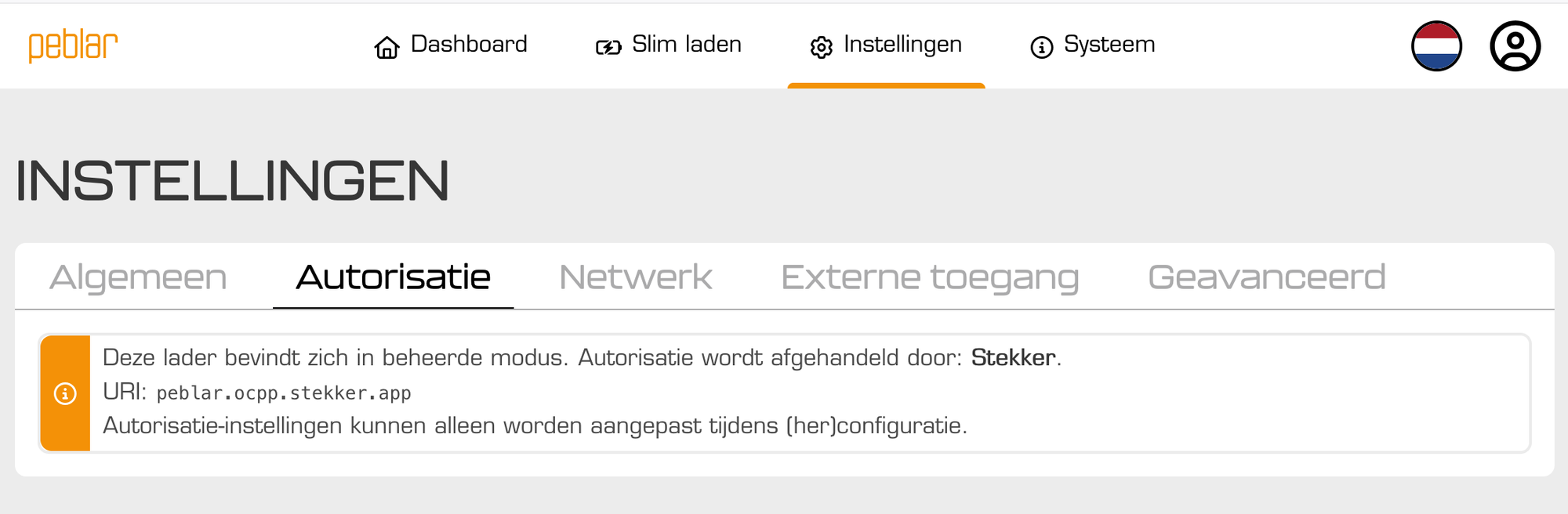
There are basically two routes to claim ERE rewards for all of 2026 with your Peblar:
- Upload a file with your charging sessions to Stekker yourself
- Set Stekker as the ‘manager’ of your Peblar charger
To start: update your charger
Take the card with codes that came with your Peblar.
First scan the QR code marked WLAN login, then the one marked Web App.
Alternative: your Peblar is a wifi hotspot. Connect to it and type the ‘Hotspot URL’ into the address bar of your favourite browser.
Device Password is what you enter at Peblar to get into your dashboard.
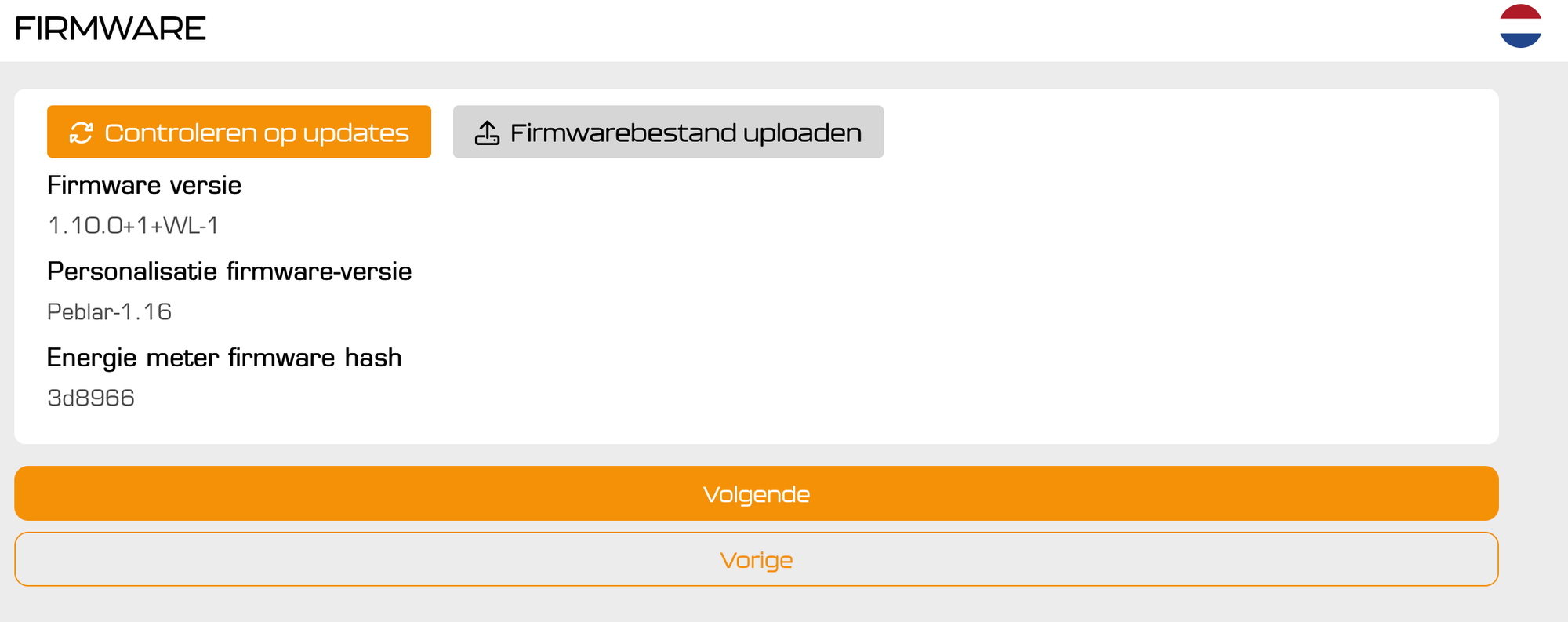
Go to System, Check for updates and make sure you have firmware 1.10 or higher.
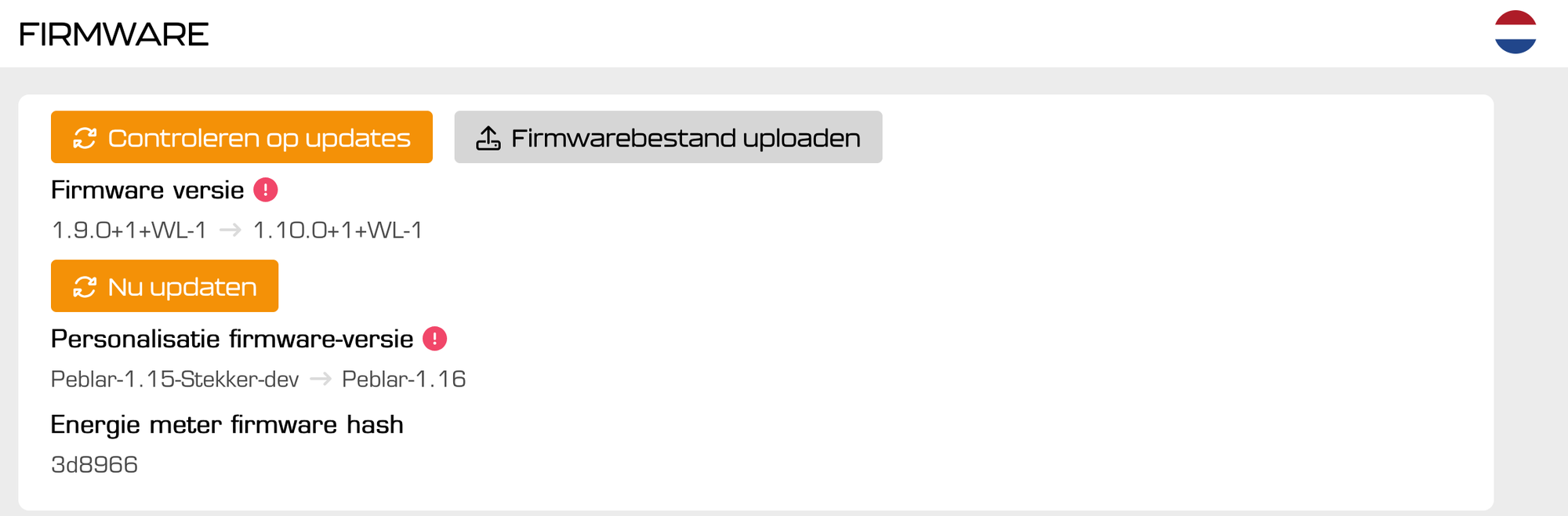
After 1-2 minutes, connect to the Peblar wifi again.
Exchanging files
Once you are logged in to your Peblar dashboard, you will find the option Download charging sessions at the bottom.
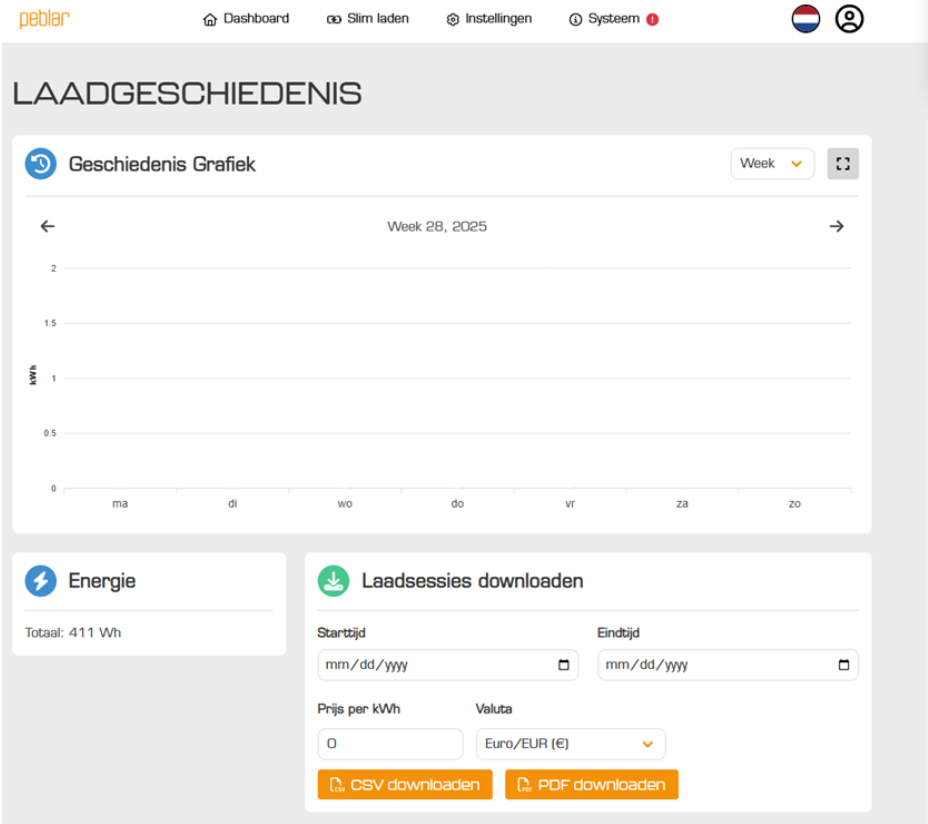
For example, enter 01-01-2026 and 15-10-2026 to download all sessions since 1 January. You can leave the price per kWh empty.
Click Download CSV.
Uploading sessions to Stekker
You can upload files through this direct link: https://stekker.app/portal/ere/session_file/new
You can also go to Chargers → ‘Add charger’ → Peblar → Upload files yourself in your Stekker dashboard and follow the instructions there.
Setting Stekker as the manager of your Peblar
To register sessions with Stekker automatically from today:
In your Peblar dashboard, go to System → Installation → Reconfigure.
You get a step called Authorization. Choose Managed and select Stekker in the (long) list under Backoffice.
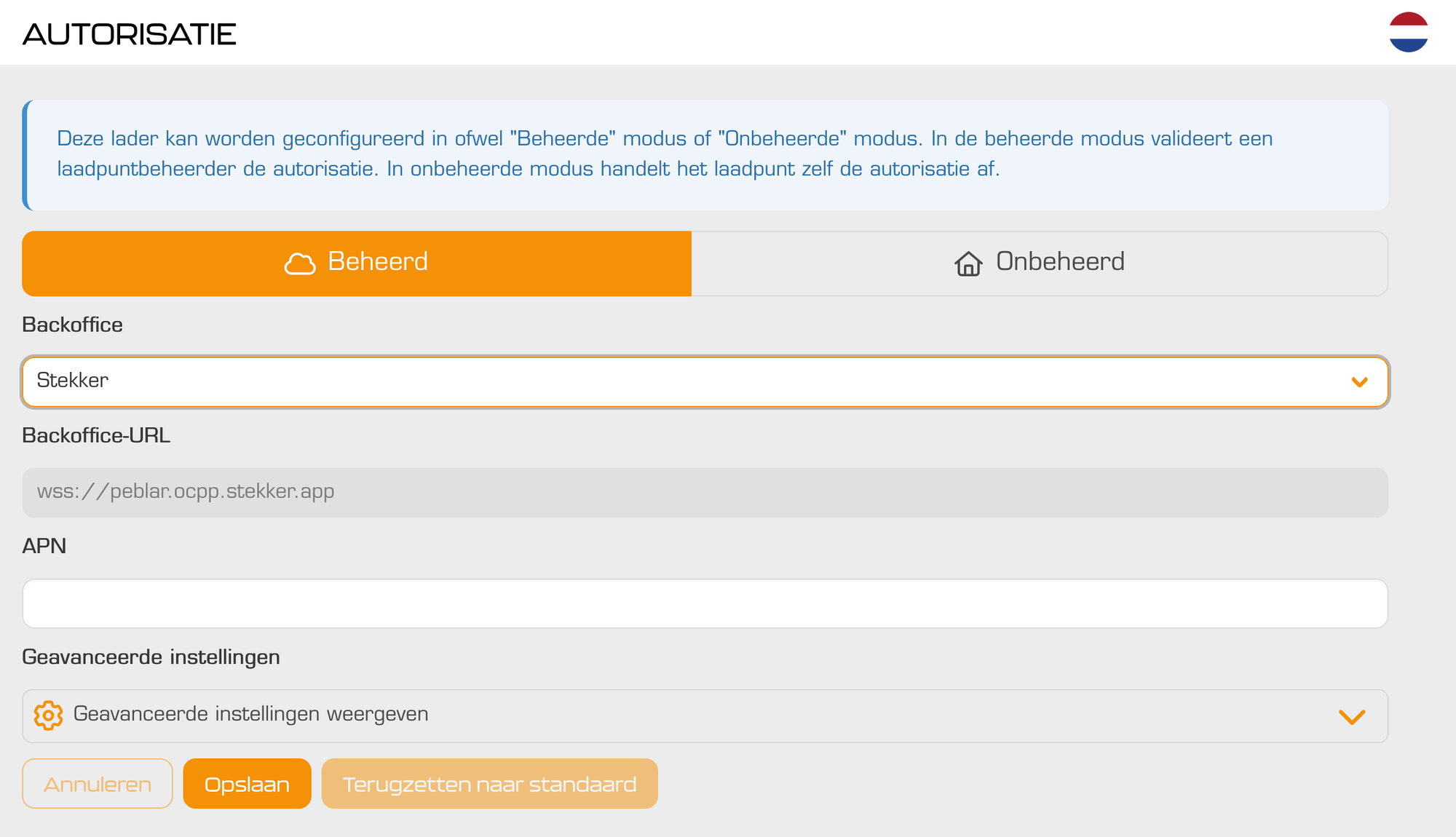
Complete the setup steps. Restart your Peblar.